install-os: Difference between revisions
| (2 intermediate revisions by the same user not shown) | |||
| Line 14: | Line 14: | ||
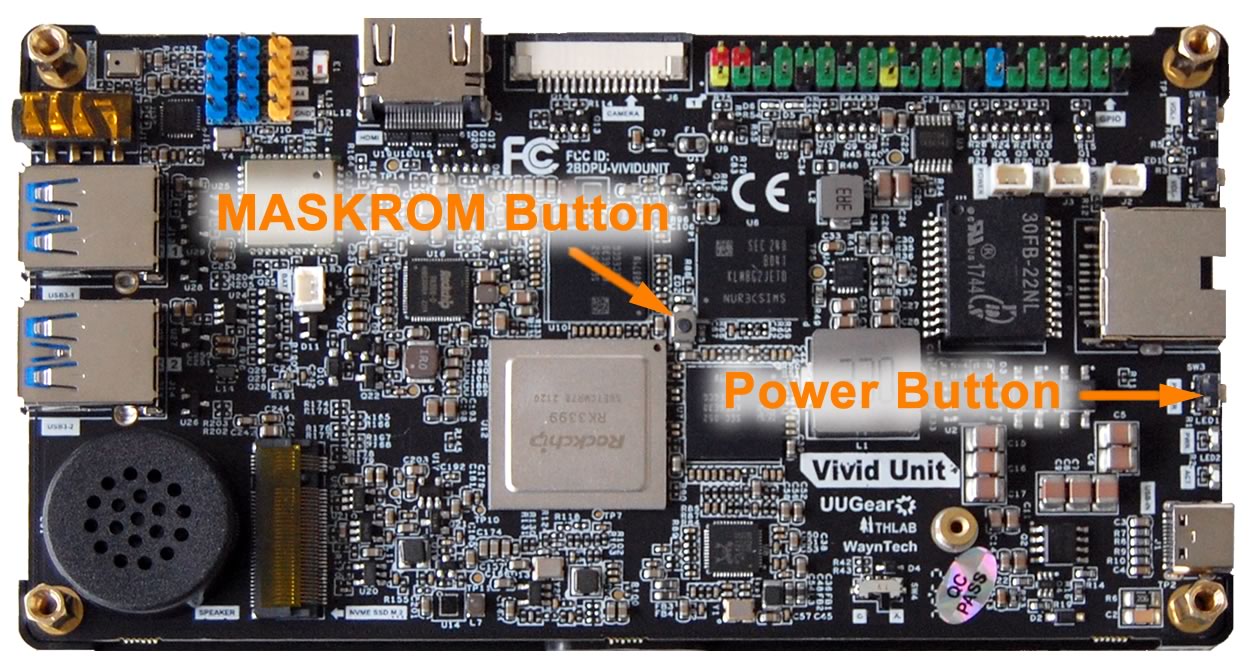
Next step is to connect your Vivid Unit to your computer via an USB type-C cable. You press and hold the small MASKROM button in the middle of Vivid Unit's circuit board (do not release it) and then press the power button (also do not release it) for about 5 seconds. After releasing both buttons you should see the Maskrom device is detected by the software. If it doesn't show up, please repeat this step. | Next step is to connect your Vivid Unit to your computer via an USB type-C cable. You press and hold the small MASKROM button in the middle of Vivid Unit's circuit board (do not release it) and then press the power button (also do not release it) for about 5 seconds. After releasing both buttons you should see the Maskrom device is detected by the software. If it doesn't show up, please repeat this step. | ||
<pic src="images/f/f8/maskrom_and_power_buttons.jpg" width="70%" align="text" caption=""></pic> | |||
In the window of FactoryTool, you will see the device is listed with type "Maskrom". That means the board has entered MASKROM mode, which allows you to flash the OS into eMMC. | In the window of FactoryTool, you will see the device is listed with type "Maskrom". That means the board has entered MASKROM mode, which allows you to flash the OS into eMMC. | ||
Latest revision as of 06:41, 26 November 2025
Re(install) Operating System (OS)
Vivid Unit has eMMC storage onboard and the operating system (Debian with XFCE desktop enviroment) has been pre-installed in the eMMC. Usually you do not need to install operating system by yourself. However if the operating system corrupts or you want to install a different operating system (if available), you may follow this instructions.
You may download the OS image from this page.
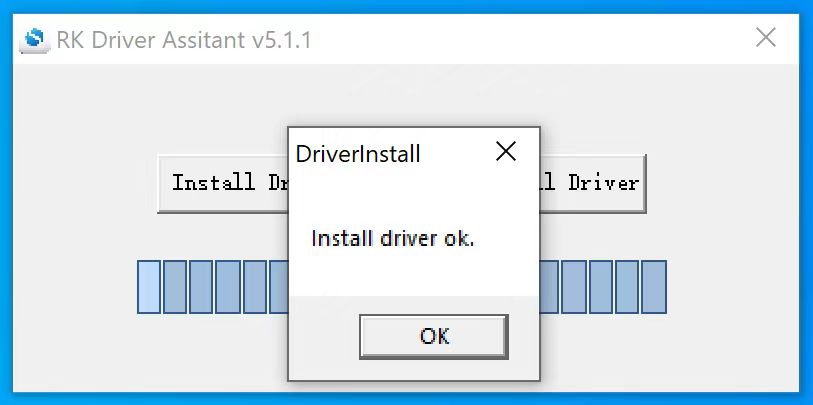
Vivid Unit needs to enter MASKROM mode, and get recognized by your computer as a maskrom device before proceeding further. You may need to download and run this RK Driver Assistant to help installing the required RK drivers.
You will need to use this Factory Tool to flash the OS image into the eMMC on your Vivid Unit. Please download it and have it installed on your computer (with Windows running). Unfortunately we currently do not have a tool that works on Mac OS X or Linux, so you may need to run Windows virtual machine if your computer is not natively running Windows. Run the FactoryTool.exe and you will see its window like this:

Next step is to connect your Vivid Unit to your computer via an USB type-C cable. You press and hold the small MASKROM button in the middle of Vivid Unit's circuit board (do not release it) and then press the power button (also do not release it) for about 5 seconds. After releasing both buttons you should see the Maskrom device is detected by the software. If it doesn't show up, please repeat this step.
In the window of FactoryTool, you will see the device is listed with type "Maskrom". That means the board has entered MASKROM mode, which allows you to flash the OS into eMMC.

Click the "Firmware" button on the to left corner and you can browse and choose the OS image file. It is called "Firmware" by the FactoryTool but it actually means the OS image here.

Now you can click the "Run" button on FactoryTool window and it will start flashing the system. You can see the progress on the window too.

After a few minutes the process will be finished.

Now the operating system is flashed into eMMC, and you can click the "Stop" button and quit the FactoryTool.
Connect your Vivid Unit to power source and tap the power button to boot it.

